How to Batch Delete SharePoint List Data with List Tools
Managing large SharePoint lists often involves cleaning up old or irrelevant data. Deleting items one by one is incredibly time-consuming. To simplify this process, our List Tools for SharePoint application includes a powerful “Batch Delete” feature, designed to make bulk data removal quick and effortless.
As we introduced in our previous post on importing data, List Tools is a comprehensive solution for list management. You can find and install it from Microsoft AppSource.
Here’s how you can use the Batch Delete feature to clean up your lists.
Step 1: Launch the Tool
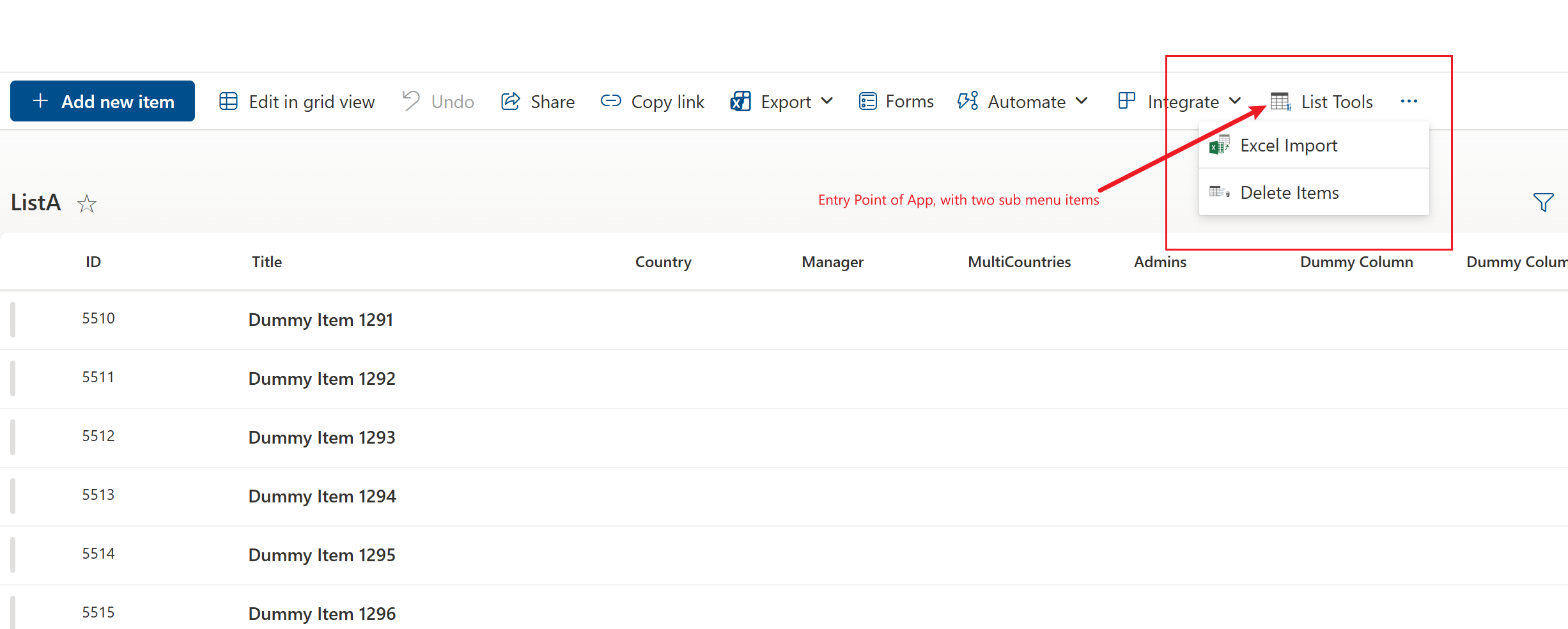
Just like with the data import, you start by launching the tool from your SharePoint list page. Click the “List Tools” button in the command bar and select “Batch Delete” from the menu.
Step 2: Select a View to Load Data
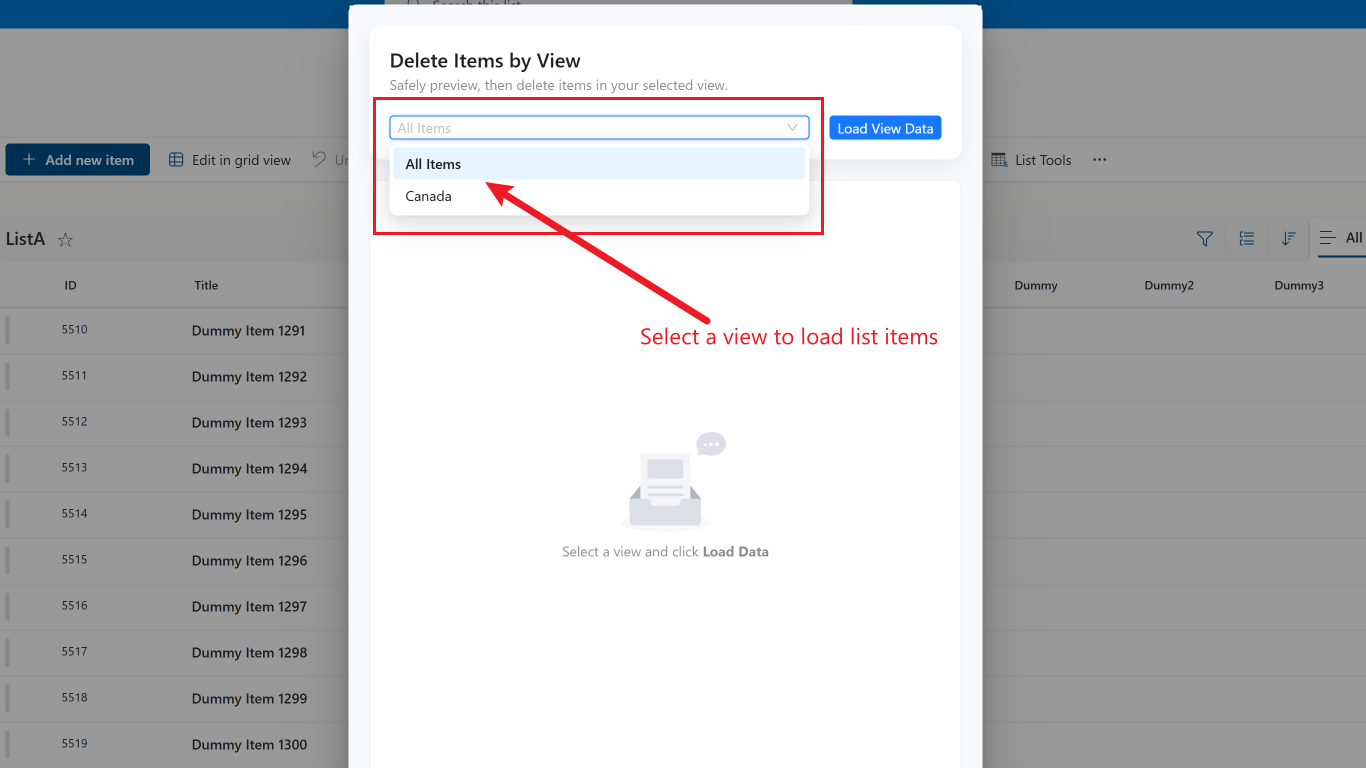
The Batch Delete tool is integrated with SharePoint list views. In this step, you select an existing view from the dropdown list. The tool will load all the items that match the filters and conditions of that specific view. This allows you to precisely target which items you want to delete.
Step 3: Preview the Items
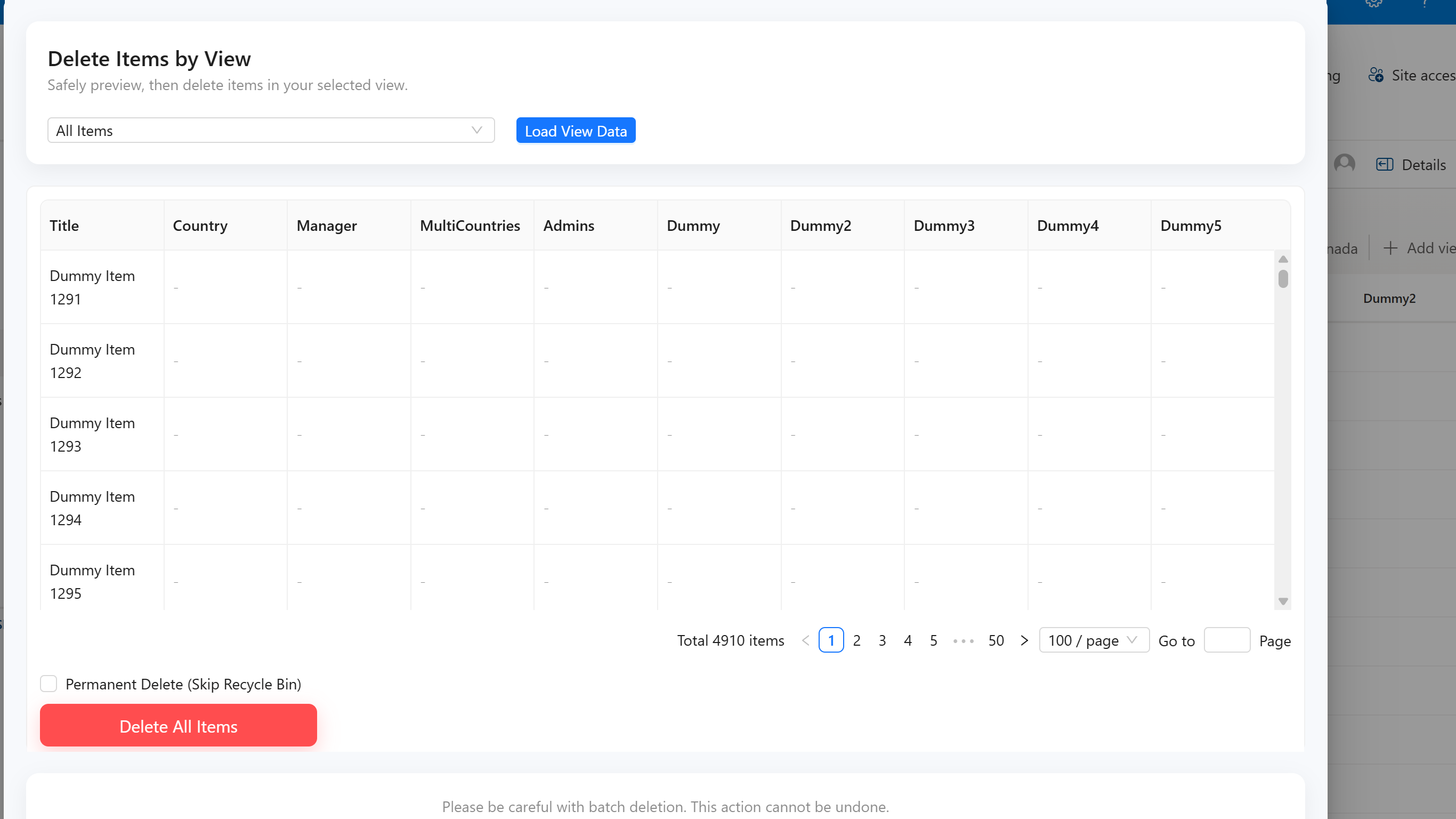
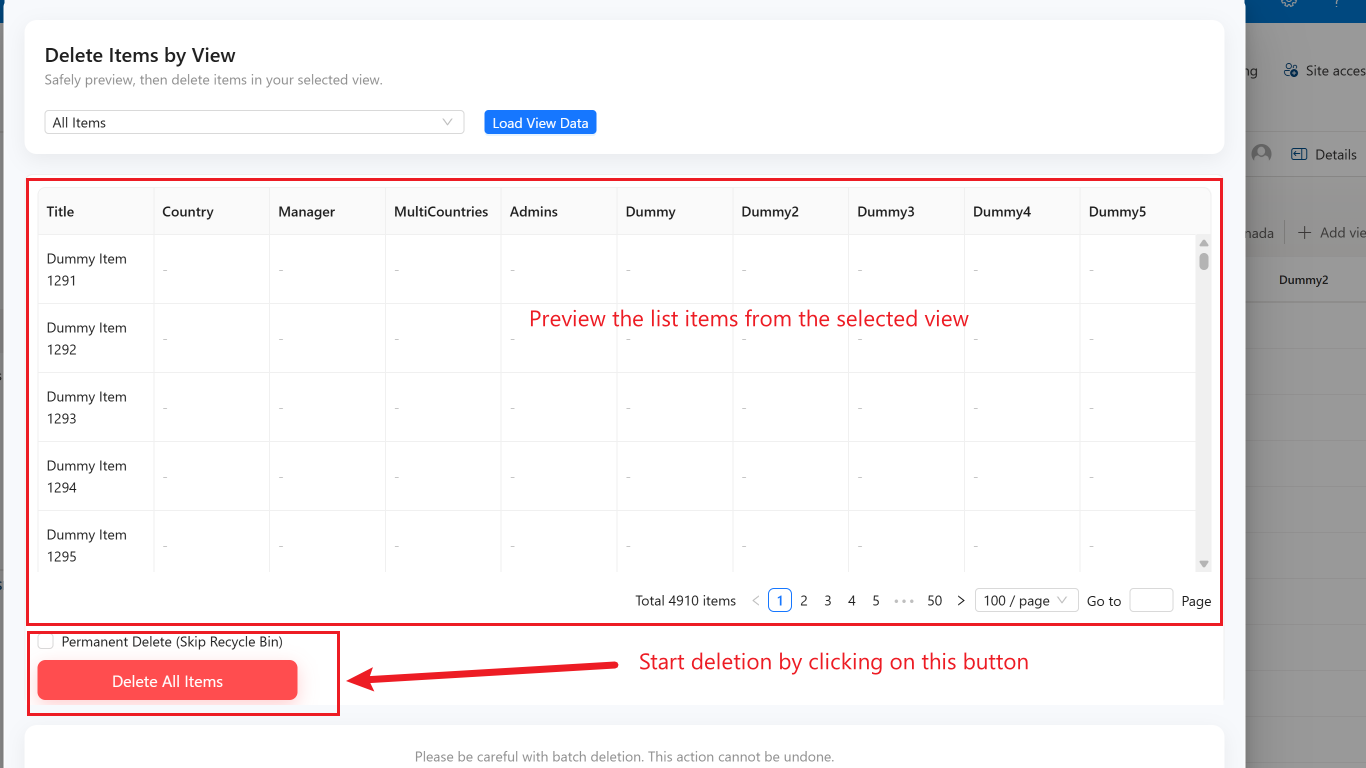
After you load the data, the tool displays a preview of the items that are staged for deletion. This is a critical step to ensure you are about to delete the correct data. You can review the count and a sample of the items to confirm your selection.
Step 4: Confirm and Execute Deletion
Once you have verified the items in the preview, you are ready to proceed. Click the “Delete” button. The tool will ask for a final confirmation to prevent accidental data loss. After you confirm, the batch deletion process will begin.
Conclusion
With the Batch Delete feature in List Tools for SharePoint, you no longer need to waste time on manual deletions. By leveraging existing list views, you can perform targeted, bulk data cleanup operations safely and efficiently. This not only improves your productivity but also helps maintain the health and relevance of your SharePoint data.
