How to Filter Items in List in an Excel-like Way
I am sure you all know that the built-in list view has filters. You can choose items to display on page on the menu after you clicked on header of each column. With this filters, users can find the ones they want very easily.
What’s the default filters looks like
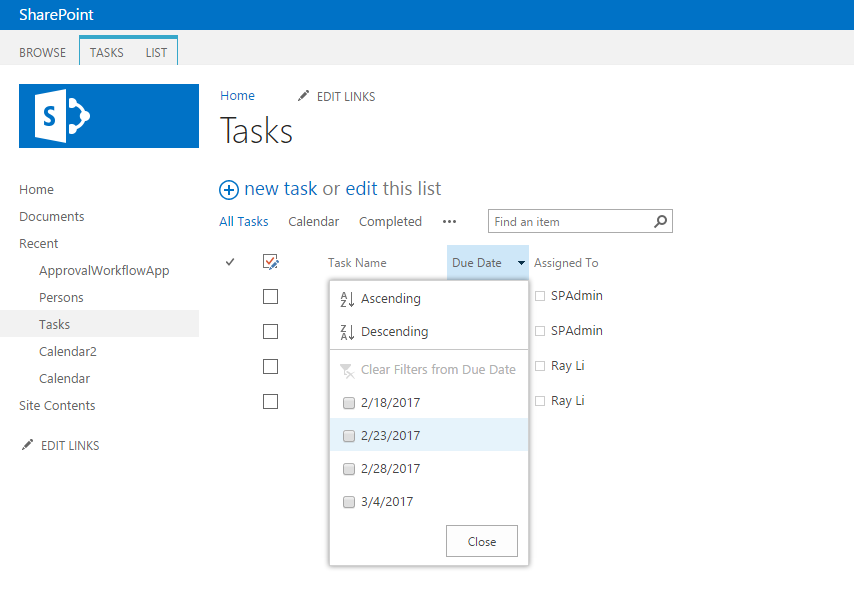
By default, you can filter the items by choosing the values you want one by one, just like the below screenshot shows. When the items are not so many, it works just fine.
What if there are hundreds of items?
First of all, you will get a menu like what the screenshot shows below.
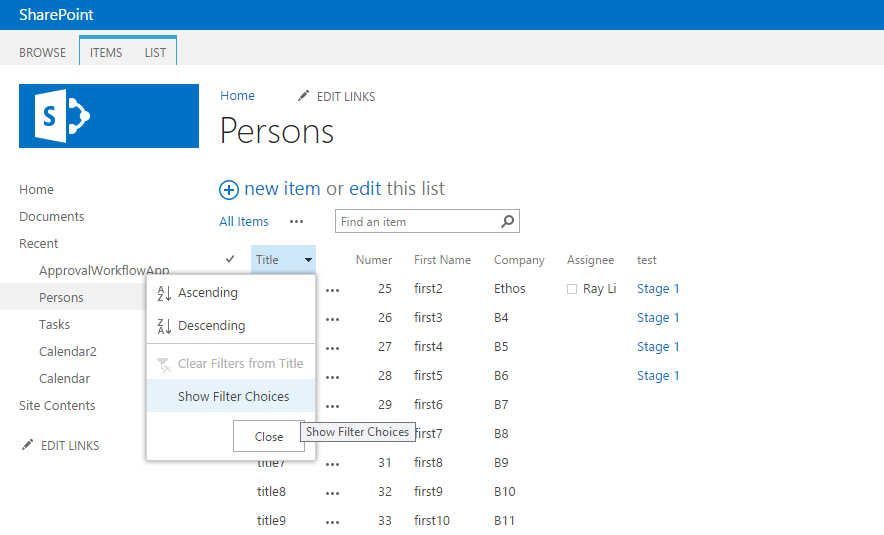
It won’t show you anything until you clicked on the text “Show Filter Choices”. And after that, this will be what you got.
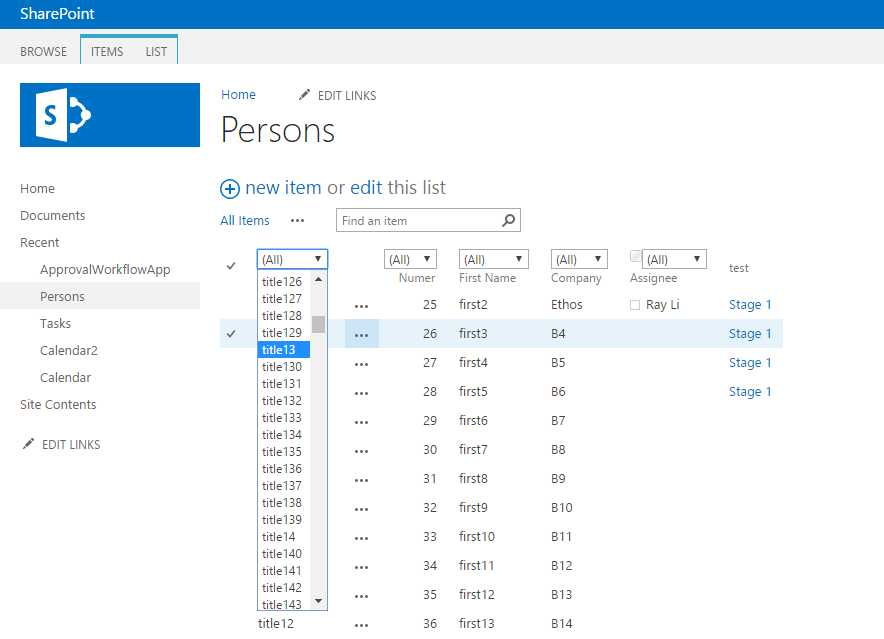
The problem is that this filter menu is not that helpful, because
- There are too many choices in the dropdown list, a small move of scrollbar could cause a big change in the choices list.
- You can only select one option each time.
- If you want to switch to other choices, you have too go though these two steps again.
We can do better with List View Filter
List View Filter can help you with this situation by add more options for users to filter data. It supports the columns in these three types.
- Single line of text
- Date and Time
- Number, including Currency
After installed List View Filter on SharePoint server, the filter menu will be different from the built in one.
With Single line of text
You can get more methods to filter the items,
- Starts with. Search the column value starts with your input.
- Contains. Search the column value contains your input.
- Equals with. Search the column value equals with your input.

With Numeric columns
You can get more methods to filter the items,
- Equals with. Search the column value equals with your input.
- Not Equals with. Search the column value does not equal with your input.
- From * to *. Search the column value in the range of your inputs.

With Date and Time columns
You can get more methods to filter the items,
- Today. Search the column value equals with your today.
- This Week. Search the column value belongs to the current week.
- This Month. Search the column value belongs to the current month.
- Last Week. Search the column value belongs to the last week.
- Last Month. Search the column value belongs to the last month.
- From * to *. Search the column value in the range of your inputs, basically you can use this to filter dates based on a date range.

You can find more details about this product here
